How to Set Up QR Code Voting for Your Cook-Off
A six-step setup walkthrough: generate the code, size and print table tents, place them where people stop, and troubleshoot scans on event day.
If you have ever run a cook-off with paper ballots, you know the pain. People lose their slips. Someone forgets to vote before leaving. You spend 20 minutes hunched over a table tallying handwritten numbers while everyone stands around waiting.
QR code voting fixes all of that. Judges pull out their phone, scan a code, and vote from a clean interface that tallies everything instantly. This guide walks through how to set it up, what size to print the code, and what to think about on event day.
Already sold on going digital and just want the steps? Skip ahead. If you are still weighing it against index cards, the case for dropping paper ballots covers the counting errors, the ties, and the dead half hour while someone tallies.
What You Need Before You Start
QR code voting needs less than people expect:
- A free account on a cook-off voting app. That is where the code gets generated - you are not making it yourself in a QR generator.
- A printer, or a screen you can display the code on. Either works.
- Cardstock, if you are printing. Regular paper curls and picks up grease within an hour.
- Roughly ten minutes, the day before your event.
You do not need WiFi at the venue (cellular is fine), a laptop at the event, or one code per table. One code covers the whole event.
How QR Code Voting Works
The flow is simple from both the organizer and judge side.
For the Organizer
- Create your cook-off event in the app (add dishes, set scoring style, choose categories)
- Open the Judges screen, where your QR code and shareable link are waiting
- Display the QR code at the event - print it, project it, or share the link via text
- Monitor voting progress from your admin dashboard
- Close voting and reveal results
For the Judge
- Scan the QR code with their phone camera (no app needed)
- Enter their name to join the event
- Browse the entries and rate each one
- Submit their votes
- See results when the organizer finalizes them
The whole process takes most judges about 2-3 minutes. Compare that to walking up to a table, filling out a paper form, and dropping it in a box - then waiting 20 minutes for someone to count everything.
Setting Up QR Code Voting with Cookoff
Here is a step-by-step walkthrough using Cookoff, which is built specifically for cooking competitions.
Step 1: Create Your Event
Sign up for a free account and create a new cookoff. You will be asked to pick a voting style - favorite, points, or rubric. Favorite (one pick per person) suits a People's Choice crowd, points is the default for casual events, and rubric is for competitions with prizes on the line; the judging guide walks through which to pick. It does not change anything about the QR setup, so if you are unsure, take points and move on. You can switch it later.
Step 2: Add Your Dishes and Categories
Add each entry to the event. If you are running a chili cook-off with categories like Traditional, White Chicken, and Wildcard, create those categories and assign entries to them. If it is a straightforward competition with one category, you can skip this - the app handles single-category events cleanly.
Give each dish a name and optionally assign the contestant who made it. The app tracks who made what so you can prevent self-voting automatically.
Step 3: Find Your QR Code
There is nothing to switch on. Every cookoff gets a QR code and an invite link the moment you create it.
Open your cookoff and go to the Judges screen. The Invite judges block at the top has both:
- A QR code, with a Download QR code button that saves it as a PNG
- A shareable link with a Copy button, ready to text, email, or post in a group chat
Both lead to the same place - your event's voting page. Judges do not need an account or an app download. They scan the code, enter their name, and they are in.
If you would rather keep the event private, set Who can join on the same screen to Invite only, so only people you invite by email can get in.
Step 4: Print or Display the QR Code
How you display the QR code depends on your event setup:
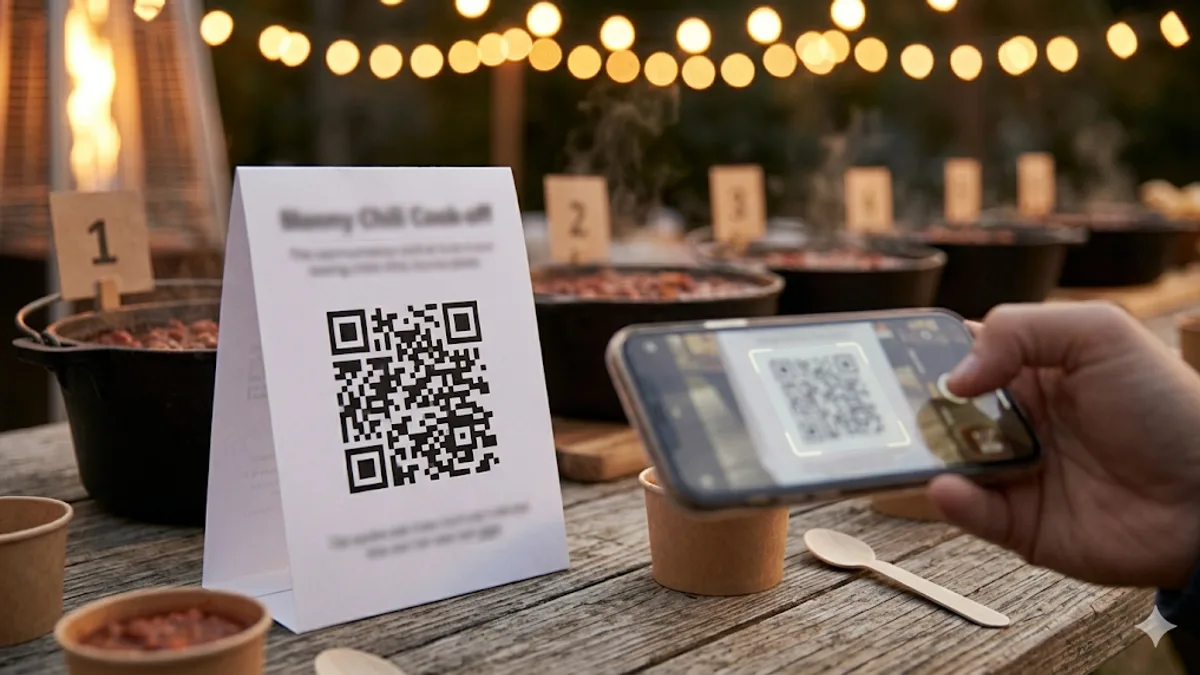
- Table tents: Print the QR code on folded cards and place them along the tasting table. This is the most common approach and works well because judges see the code right next to the food.
- Projected on a screen: If you have a TV or projector at the venue, display the QR code on screen. Good for larger events where you want maximum visibility.
- On the event flyer: Add the QR code to whatever handout or poster you are already making for the event.
- Text message or group chat: Send the shareable link to attendees before or during the event. This works especially well for events where people are arriving at different times.
For most cook-offs, table tents plus one projected display covers everyone.
How big does the QR code need to be? The working rule is roughly one inch of printed code for every ten inches of scanning distance. In practice:
| Where it goes | Scan distance | Print the code at least |
|---|---|---|
| Table tent next to a dish | 6-12 in | 1.5 in square |
| Sign at the end of the tasting table | 2-3 ft | 3 in square |
| Poster by the door | 5-6 ft | 6 in square |
| Projected on a TV or screen | 10-15 ft | Fill a third of the screen |
A few printing details that decide whether people scan on the first try:
- Keep the quiet zone. QR codes need clear space around all four edges - about the width of four of the little squares. Cropping tight to the code, or running a border right up against it, is the most common reason a code will not scan.
- Dark code on a light background, never inverted. Some phone cameras refuse to read a light-on-dark code. Same for printing it over a photo.
- Skip glossy paper and laminate. Venue lighting reflects off the shine and blows out the contrast. Matte 65 lb cardstock scans in almost any light and stands up on its own as a table tent.
- Write the plain link underneath. Whoever cannot scan will type it, and it costs you one line.
Step 5: Open Voting
When tasting begins, announce that voting is open and point people to the QR code. A quick verbal reminder helps: "Pull out your phone, scan the QR code on the table, and rate each dish when you are ready. Voting closes at 1:30."
From your admin dashboard, you can see who has joined and who has submitted votes. If someone is having trouble, they can use the shareable link instead of scanning.
Step 6: Close Voting and Announce Winners
When voting closes, finalize results from your dashboard. The app calculates winners automatically. You can:
- Show results on a projected screen for a live reveal
- Share winner badges that contestants can save and share
- Share a results link anyone can revisit later, or email results straight to your judges
Tips for Event Day
A few things that make QR code voting go smoothly at a live event.
Test the QR Code Before the Event
Print a test copy and scan it with your phone. Make sure it loads the right event page and that you can join as a judge. Do this the day before, not five minutes before tasting starts.
Have the Shareable Link Ready as a Backup
Some older phones struggle with QR scanning, and some camera apps do not recognize QR codes automatically. Keep the shareable link ready to text to anyone who cannot scan. You can also write the short link on a whiteboard.
Place QR Codes Where People Naturally Stop
Put QR codes at the beginning of the tasting line, next to the water station, and anywhere people stand or sit while eating. The goal is to catch people when they have a free hand and a moment to scan.
Deal with Slow or Spotty WiFi
Most venues have decent WiFi, but if you are at a park or community center, connectivity can be a concern. The voting interface is lightweight and works on slow connections. If WiFi is truly unavailable, judges can use their cellular data - the pages load quickly on 4G/5G.
For fully offline locations (rare but possible), you can set up a mobile hotspot from your phone. One hotspot can support 10-15 judges at a time.
Remind People to Vote Before They Leave
The biggest risk with any voting system is people tasting everything and then leaving without voting. Make a public announcement 15 minutes before voting closes. If you are using the admin dashboard, you can see who has joined but not yet voted and send them a nudge.
Set a Firm Voting Deadline
"Voting closes at 1:30 sharp." Put it on the QR code printout. Say it out loud. Do not extend it. People who know there is a hard deadline will vote on time. If you keep extending it, stragglers will keep straggling.
Common Questions About QR Code Setup
"What if not everyone has a phone?"
It is rare at most events, but it happens. You can set up a shared tablet at a voting station for anyone without a phone. The voting interface works on any screen size, so a single iPad with the voting link bookmarked handles this nicely.
"Can I customize what judges see?"
Yes. You control the event name, categories, scoring criteria, and which entries are listed - enough to make the ballot feel like your event without any extra design work.
"Do judges see results before voting ends?"
No. Results are hidden until the admin finalizes them. This prevents bandwagon voting where people just pile on the current leader.
"What about accessibility?"
The voting interface is designed with accessibility in mind - clear tap targets, readable text sizes, and high contrast. It works in any phone browser without requiring fine motor control or tiny button presses.
Your Setup Checklist
Run through this the day before and you are done:
- Event created, dishes added, scoring style picked
- QR code downloaded from the Judges screen
- Code printed at the right size for where it is going, with the plain link written underneath
- Test scan done with your own phone, from the distance a judge will actually stand at
- Shareable link saved somewhere you can paste it fast on event day
- Closing time decided and printed on the tent
That is the whole job. Ten minutes the night before buys you back the half hour you would have spent counting.
Related reading:
Set up QR-code voting in two minutes
Cookoff generates the QR code, hosts the ballot, and tallies the votes. No printing, no math errors.
Get your QR code